In this guide
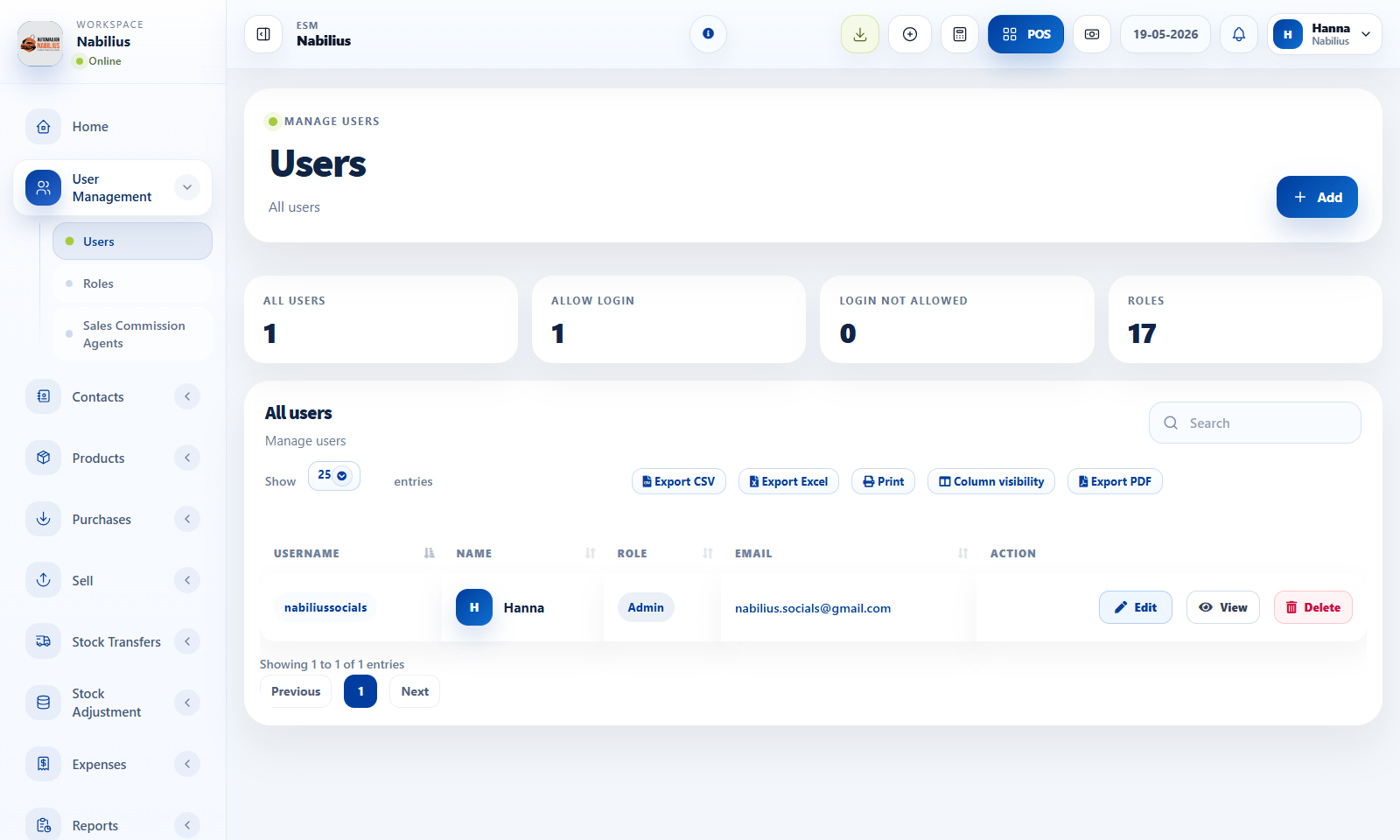
User records
Users represent people who can log in to the app.
- Create users from User Management, then assign a username, email, role, and allowed locations.
- Use Allow Login to enable or block app access without deleting the user.
- Use View User to review activity, notes, and related account details.
Role design
Roles decide which menus and actions are visible.
- Give cashiers POS and basic sales permissions only.
- Give managers reports, stock, purchase, and user review permissions.
- Reserve delete, settings, subscription, and role-management permissions for owners or admins.
Check before moving on
A cashier can open POS but cannot change business settings.
A manager can review reports but cannot access Superadmin screens unless required.
Access review
Review access any time a team member changes job, branch, or employment status.
- Disable login immediately when access should be removed.
- Check activity logs for sensitive changes.
- Keep admin accounts limited and protected.
Detailed operating workflow
Use user management to give every staff member a traceable account with the right permissions.
- Create roles around responsibilities such as cashier, manager, stock controller, accountant, and owner.
- Create users with unique usernames, emails, allowed locations, and role assignments.
- Disable login instead of deleting users when access should be paused but history must remain intact.
- Review sensitive permissions such as delete, settings, subscriptions, payments, and role management separately.
Check before moving on
A cashier can sell but cannot change settings or delete records.
A manager can review reports and stock but cannot access billing unless required.
Every important action can be traced to a real user in the Activity Log.
Review signals and troubleshooting
Use these checks when the screen looks correct but the numbers, records, or workflow do not behave as expected.
- If a user cannot see a menu, check role permissions, location access, and subscription modules.
- If shared logins exist, replace them with individual accounts before relying on activity logs.
- After staff changes, disable login immediately and review active sessions if needed.
Practical notes
- Do not reuse one login for multiple staff members; it weakens activity logs and accountability.