In this guide
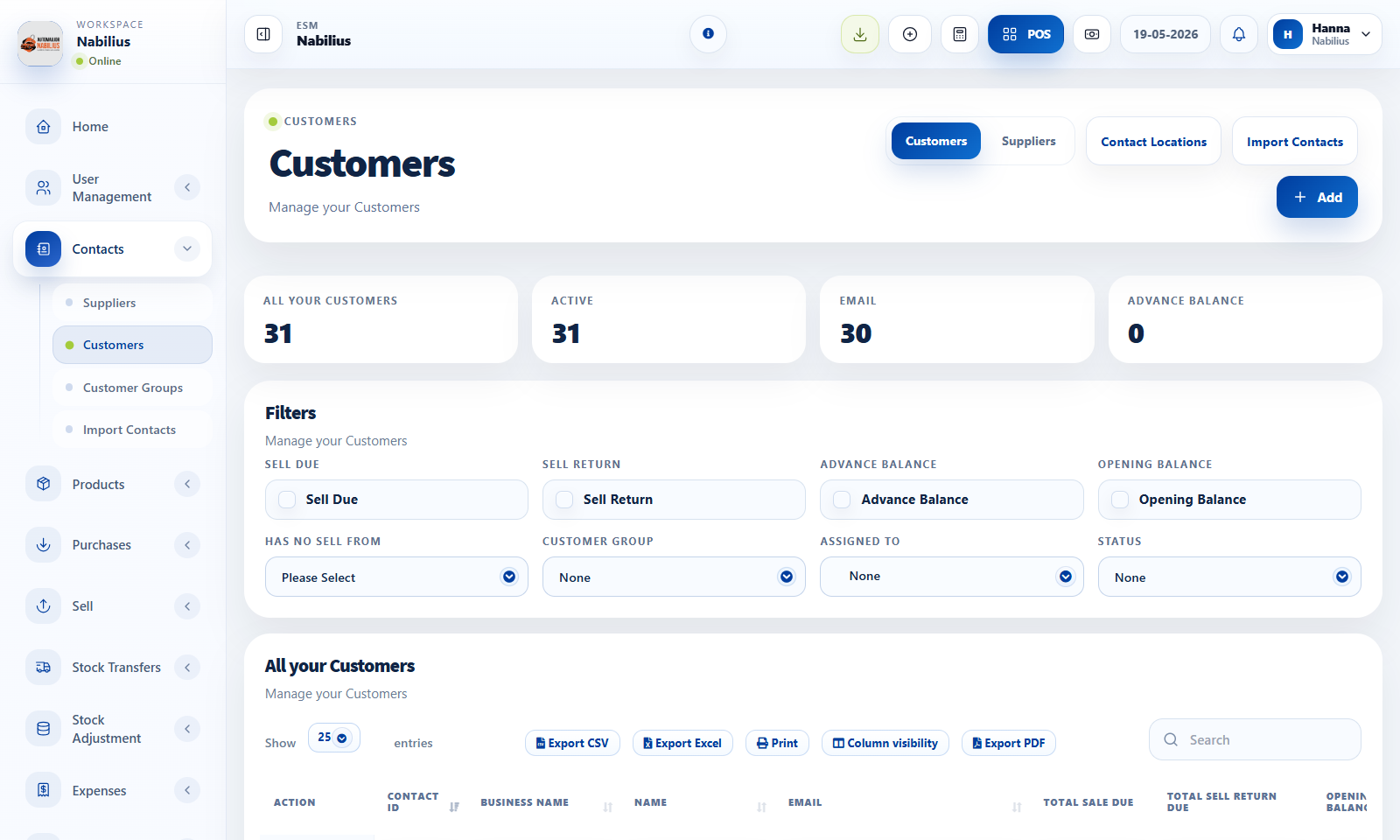
Contact types
A contact can be a customer, supplier, or both depending on the business relationship.
- Use Customers for buyers and walk-in customer records.
- Use Suppliers for vendors, distributors, importers, and service providers.
- Keep business name, contact name, phone, email, tax number, address, and pay term accurate.
Balances and credit
Opening balance, advance balance, and due amounts flow into ledgers and reports.
- Use opening balance when importing historical money owed at the start of ESMCloud usage.
- Use advance balance when a customer or supplier has prepaid credit.
- Use pay terms to track due dates and credit behavior.
Operational use
Contacts connect to purchases, sales, payments, shipments, expenses, and reports.
- Select suppliers in purchases so purchase due and returns are tracked correctly.
- Select customers in sales so invoices, payments, and ledger history are complete.
- Use contact filters in reports to audit totals by customer or supplier.
Detailed operating workflow
Use contacts as the source of truth for customers, suppliers, balances, invoices, and ledger activity.
- Create customers and suppliers with clear names, contact IDs, tax numbers, opening balances, and pay terms where needed.
- Use customer groups and price groups when pricing or reporting needs segmentation.
- Keep supplier records tied to purchases and customer records tied to sales instead of using generic contacts.
- Use import contacts only after checking the template columns and duplicate contact IDs.
Check before moving on
Opening balance and advance balance totals appear under the correct columns.
Customer and supplier filters show the expected contact type.
Contact ledgers match purchase, sale, and payment reports.
Review signals and troubleshooting
Use these checks when the screen looks correct but the numbers, records, or workflow do not behave as expected.
- If a contact is missing from a transaction, confirm its type and active status.
- If balances look wrong, compare ledger, payment report, and transaction due amounts.
- If duplicate records exist, merge operational usage before deleting anything.
Practical notes
- Use a dedicated Walk-In Customer for anonymous POS sales rather than leaving the customer field blank.