In this guide
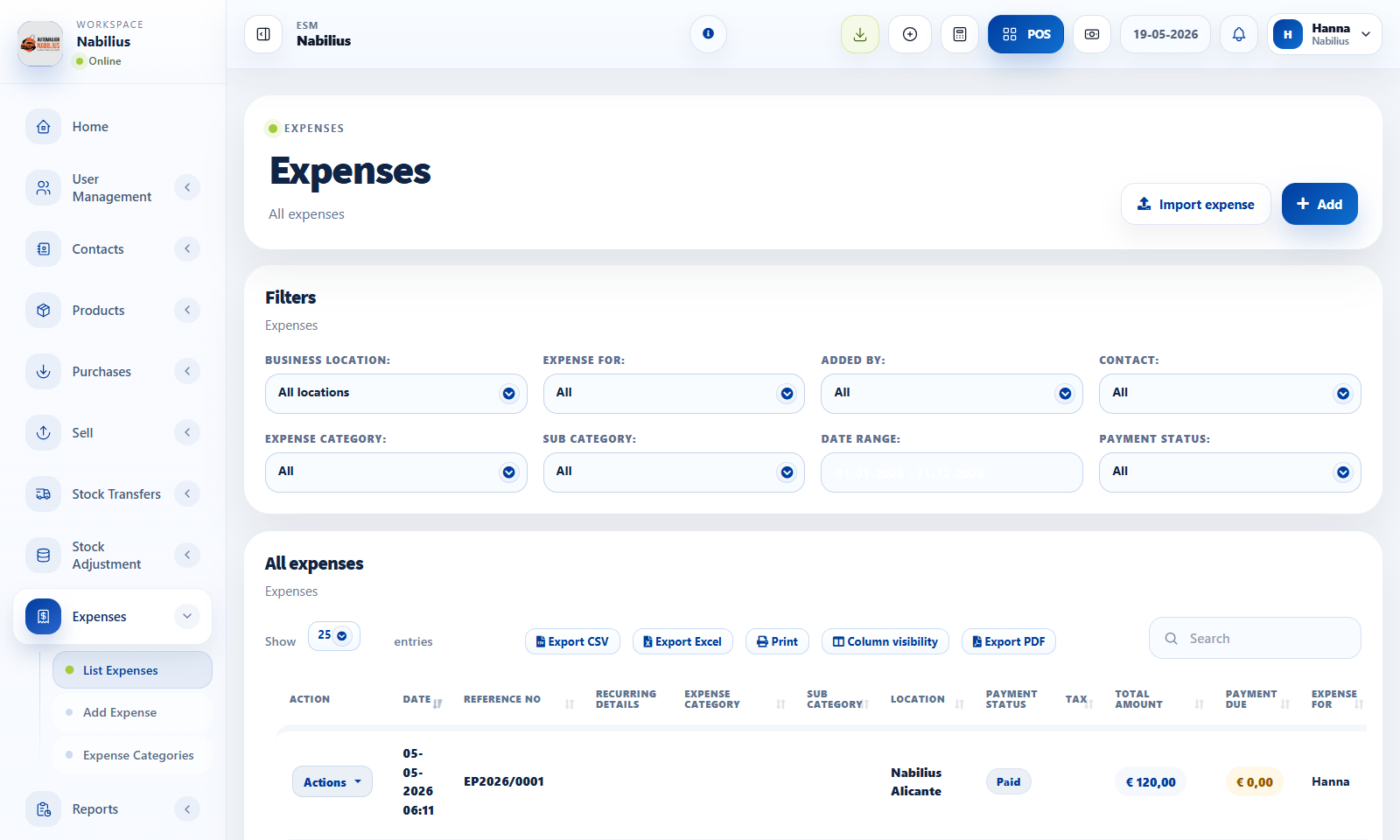
Expense workflow
Expenses track money spent outside product purchases.
- Create expense categories for rent, salaries, utilities, transport, marketing, repairs, or fees.
- Add expenses with date, location, category, amount, tax, payment status, contact, and notes.
- Use recurring expense fields only for repeated costs.
Tax setup
Tax rates and groups affect product prices, invoices, and tax reports.
- Create tax rates with clear names and percentages.
- Use tax groups only when multiple taxes must be combined.
- Review tax report after creating sales, purchases, and expenses.
Reports
Expense and tax records should be reviewed by date range and location.
- Use Expense Report for category and payment status review.
- Use Tax Report for input tax, output tax, and expense tax.
- Export reports for accountant review.
Detailed operating workflow
Use expenses, expense categories, and tax rates to keep operating costs and tax reporting consistent.
- Create expense categories and subcategories before entering recurring expenses or imports.
- Add expenses with date, location, category, tax, amount, payment status, contact, and notes where needed.
- Use recurring settings only when the expense should be generated repeatedly.
- Review Expense Report and Tax Report after entry to confirm the expense appears in the right period.
Check before moving on
Date range picker holds the intended selected period.
Expense category tables load or show a clean no-data message.
Tax rates and tax groups are visible in expense and tax reports.
Review signals and troubleshooting
Use these checks when the screen looks correct but the numbers, records, or workflow do not behave as expected.
- If an expense table is blank, inspect DataTable JSON and required columns.
- If a recurring expense repeats incorrectly, check interval, repeat-on day, and end condition.
- Use expense notes and references for later audit.
Practical notes
- Do not use expenses for product purchases; use Purchases so stock and supplier due stay correct.