In this guide
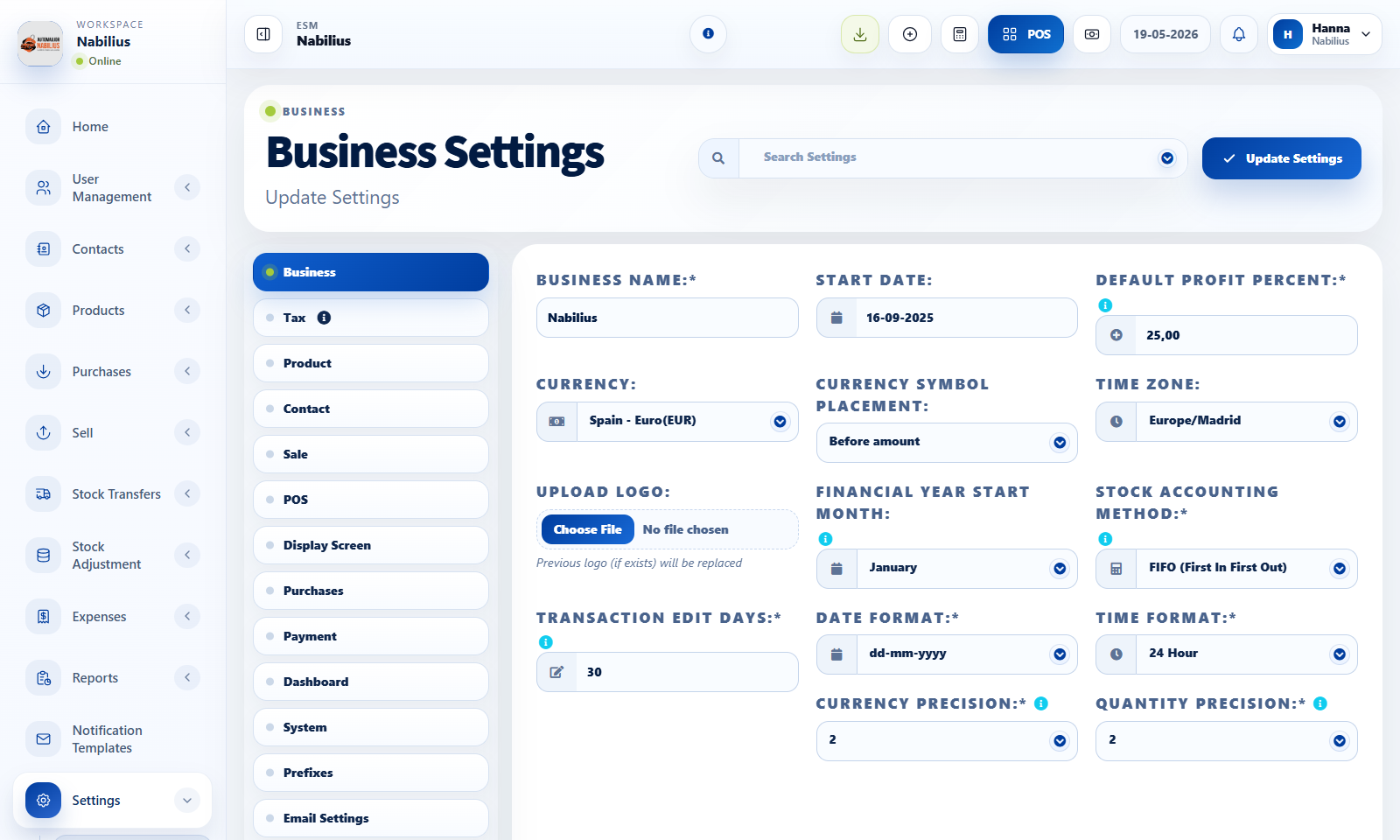
Settings that affect the whole app
Business Settings is the central control panel for application behavior.
- System settings define currency, timezone, date format, financial year, and datatable defaults.
- Product settings control expiry, units, stock behavior, custom labels, warranty, and product fields.
- Sales and POS settings control discounts, cash denominations, keyboard shortcuts, customer display, and invoice behavior.
- Email and SMS settings control outbound notifications and test message behavior.
Recommended change process
Because settings affect many workflows, avoid changing multiple unrelated options at the same time.
- Change one setting group, save, then test the related page.
- Use the settings search field when the option is hard to find.
- Keep product expiry, inline tax, reward points, and modules disabled unless the business actively uses them.
Check before moving on
Invoice preview still looks correct.
POS and Add Sale still calculate totals correctly.
Product forms still show required fields only where expected.
When to use custom labels
Custom labels help adapt the system to the industry without changing database structure.
- Use product custom labels for serial numbers, model year, color, service identifiers, or other industry-specific details.
- Use purchase and sell custom labels when the invoice needs extra operational fields.
- Avoid overusing custom fields for data that should be a category, brand, tax, unit, or location.
Detailed operating workflow
Use Business Settings to control global behavior shared by products, sales, POS, notifications, reports, and invoices.
- Change one settings tab at a time, save, then test the screen affected by that setting.
- Use the settings search field for rare options such as expiry, custom labels, cash denominations, and notification drivers.
- Keep module toggles, tax behavior, reward points, and customer display disabled unless the workflow is actively used.
- Document important choices such as financial year, tax labels, and invoice label conventions before onboarding staff.
Check before moving on
POS, Add Sale, Add Purchase, and Product forms still calculate and validate correctly.
Date format, currency, and decimal precision are consistent across reports and exports.
Email and SMS test actions work before automated notifications are enabled.
Review signals and troubleshooting
Use these checks when the screen looks correct but the numbers, records, or workflow do not behave as expected.
- If a field appears unexpectedly, check module toggles and product/sales custom labels.
- If invoices print wrong labels, check invoice layout first and business custom labels second.
- If date filters behave unexpectedly, confirm business timezone, date format, and financial year settings.
Practical notes
- Update settings during low-traffic hours if the team is actively using POS or sales screens.