In this guide
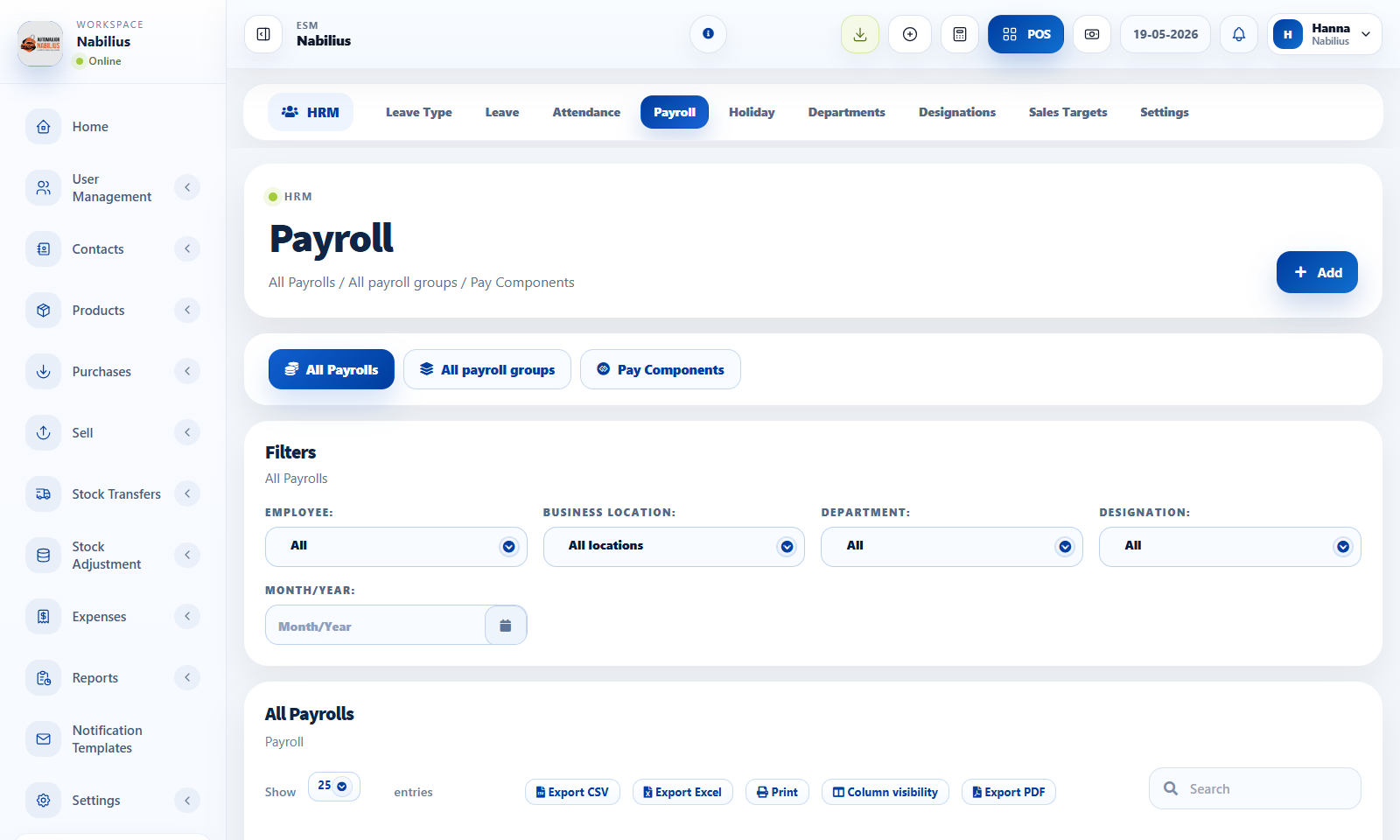
Payroll groups
Payroll groups are generated automatically from payroll runs based on selected month, location, employees, and employee structure such as department or designation.
- Use payroll groups as filters for batches created during payroll processing.
- Create a custom group only when a manual draft batch is needed.
- Review group details before final payroll approval.
Pay components
Pay components represent earnings and deductions.
- Create components for allowance, bonus, deduction, reimbursement, or statutory items.
- Keep component names clear for reports and employee review.
Payroll review
Payroll should be checked against attendance, leave, and employee details.
- Confirm the payroll month and employee selection.
- Review amounts and components before saving or approving.
- Export payroll tables for accounting records.
Detailed operating workflow
Use payroll to prepare pay runs, pay components, and automatically generated or custom payroll groups.
- Review employees, attendance, leave, holidays, departments, and designations before payroll processing.
- Use payroll groups as generated filters for payroll runs and create custom groups only for manual draft batches.
- Create pay components for recurring earnings, deductions, allowances, bonuses, or reimbursements.
- Review payroll amounts and payment status before exporting or paying.
Check before moving on
Payroll group explanation is visible and not too wide.
Add buttons, search, entries, and export buttons stay aligned in each payroll tab.
Custom group creation does not replace automatic payroll grouping.
Review signals and troubleshooting
Use these checks when the screen looks correct but the numbers, records, or workflow do not behave as expected.
- If a payroll group is missing, check the selected month, location, employees, and run status.
- If a component is wrong, correct it before payroll approval.
- Export after filters are set for the exact payroll period.