In this guide
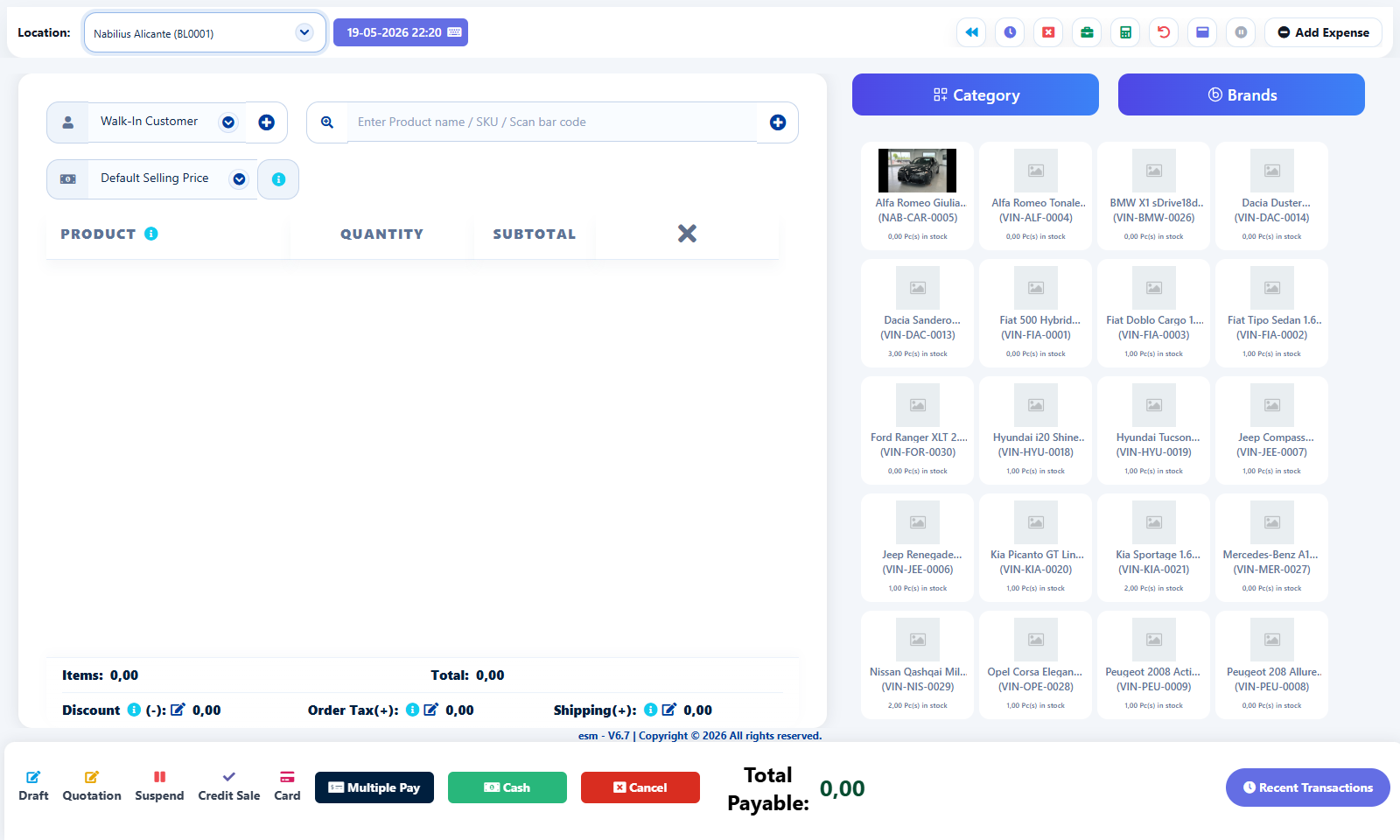
POS workflow
The POS screen is built for speed while still preserving customer, stock, tax, discount, and payment logic.
- Select customer or keep Walk-In Customer for anonymous sales.
- Search products by name, SKU, barcode, or category/brand selectors.
- Adjust quantities, discounts, order tax, and shipping where required.
- Choose payment method and finalize the sale.
Product selection
POS uses product stock and location availability.
- If a product does not appear, check stock, location, active status, and Not for selling setting.
- Use category and brand selectors to narrow long catalogs.
- Use the clear-all X in the product list only when the cart should be emptied.
Payment and register controls
POS payment buttons should match the business checkout process.
- Use cash, card, cheque, bank transfer, credit sale, draft, quotation, or suspend only when appropriate.
- Use recent transactions to quickly review or reopen recent activity.
- Close or reconcile register activity at the end of the shift if cash tracking is enabled.
Detailed operating workflow
Use POS for fast checkout while preserving customer, product, tax, discount, payment, and register history.
- Select customer and location, then add products from search, category, brand, or product cards.
- Review quantities, unit, subtotal, discount, order tax, shipping, and total payable before payment.
- Choose the payment method, collect payment, and finalize only when the transaction is correct.
- Use draft, quotation, suspend, credit sale, and card/cash flows only for the matching real-world situation.
Check before moving on
Products added to the list are visible in the scrollable product card.
Total payable matches item totals, taxes, discounts, shipping, and payments.
Stock reduces from the selected location after finalizing the sale.
Review signals and troubleshooting
Use these checks when the screen looks correct but the numbers, records, or workflow do not behave as expected.
- If product cards are empty, check category/brand filters, stock, and search terms.
- If payment cannot complete, check register status, payment account settings, and required fields.
- If POS layout feels cramped, keep the product list and bottom totals fixed and scroll only the item list.
Practical notes
- Configure POS keyboard shortcuts in Business Settings for high-volume checkout teams.