In this guide
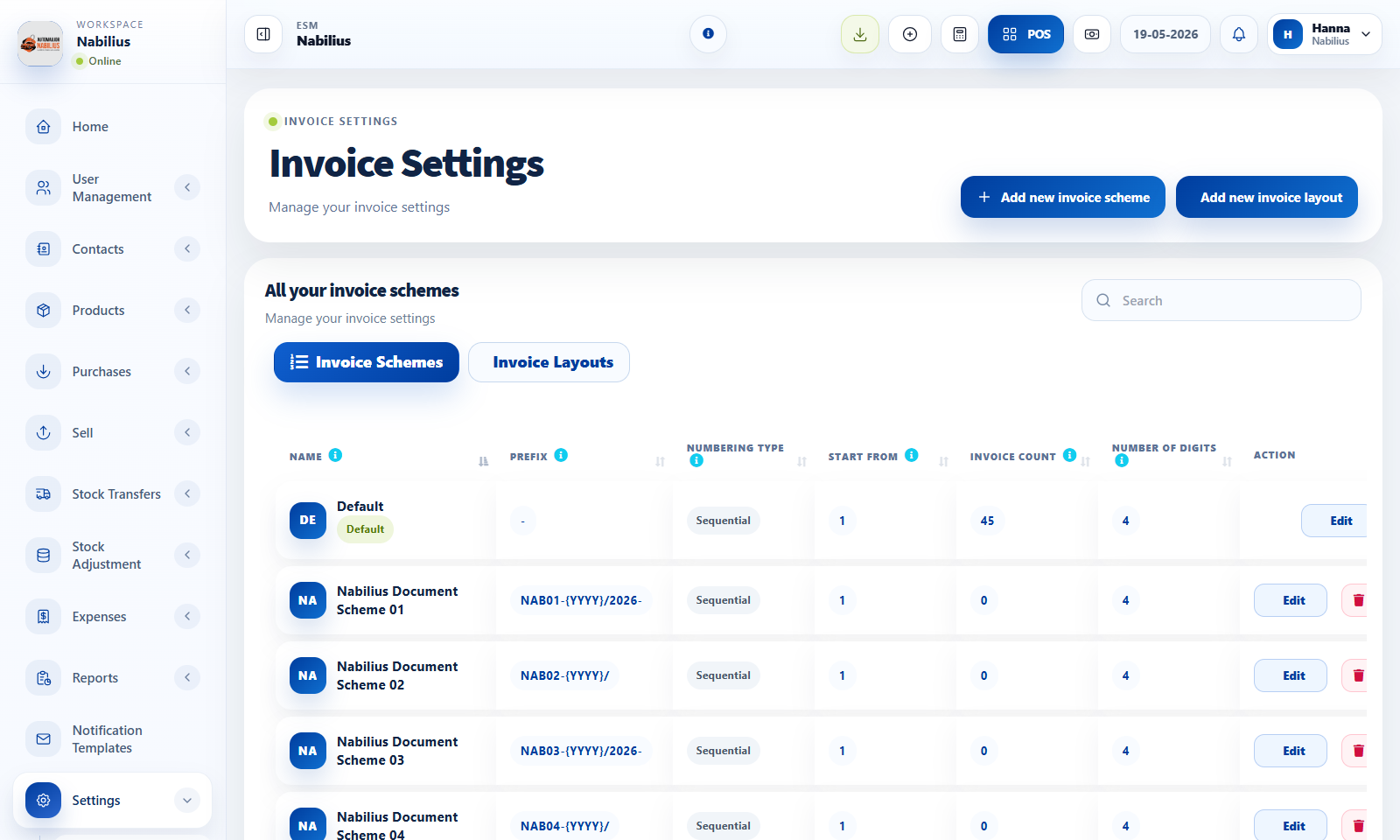
Invoice schemes
Invoice schemes control numbering format and sequence.
- Create schemes for sales, POS, quotations, or location-specific numbering when needed.
- Use previews to confirm the next invoice number format.
- Do not reset sequences casually because invoice numbering is an accounting control.
Invoice layouts
Invoice layouts control what customers see on printed or PDF documents.
- Upload invoice logo and configure customer, tax, due, reward point, QR, and footer labels.
- Use checkbox tiles to show or hide optional invoice fields.
- Assign the layout to business locations after saving.
Barcodes and printers
Barcode settings and printers support labels, receipts, and cash drawer workflows.
- Create barcode settings that match the paper and label dimensions.
- Configure printers according to the device type and receipt format.
- Test print before using a new format in live operations.
Detailed operating workflow
Use invoice settings to control numbering, print layout, barcode labels, printers, logos, and customer-facing labels.
- Create invoice schemes with safe numbering formats and preview the next number before saving.
- Create invoice layouts with logo, customer labels, date labels, tax labels, QR options, totals, and footer text.
- Create barcode settings for the paper size and label dimensions used by the business.
- Configure printers and test receipts or labels before assigning them to live operations.
Check before moving on
Invoice scheme and invoice layout tables load and switch cleanly.
Checkbox tiles align with paired fields and info icons sit inside tiles.
Invoice logo and file inputs are aligned and readable.
Review signals and troubleshooting
Use these checks when the screen looks correct but the numbers, records, or workflow do not behave as expected.
- If numbering dropdowns or modal scrollbars break, check Select2/dropdown z-index inside modals.
- If invoice layout fields look misaligned, use the empty-label-space pattern for checkbox tiles.
- Assign defaults to business locations after creating schemes and layouts.
Practical notes
- Keep one default invoice scheme and one default layout available at all times.
- Keep a short internal note explaining which scheme and layout each location should use.