In this guide
Core report filters
Reports depend heavily on date range, location, contact, product, category, brand, and payment status filters.
- Set the date range before comparing results.
- Use All locations first if you are not sure which branch contains the transaction.
- Use export buttons after filtering, not before.
Common reports
Each report answers a different operational question.
- Profit/Loss shows high-level business performance.
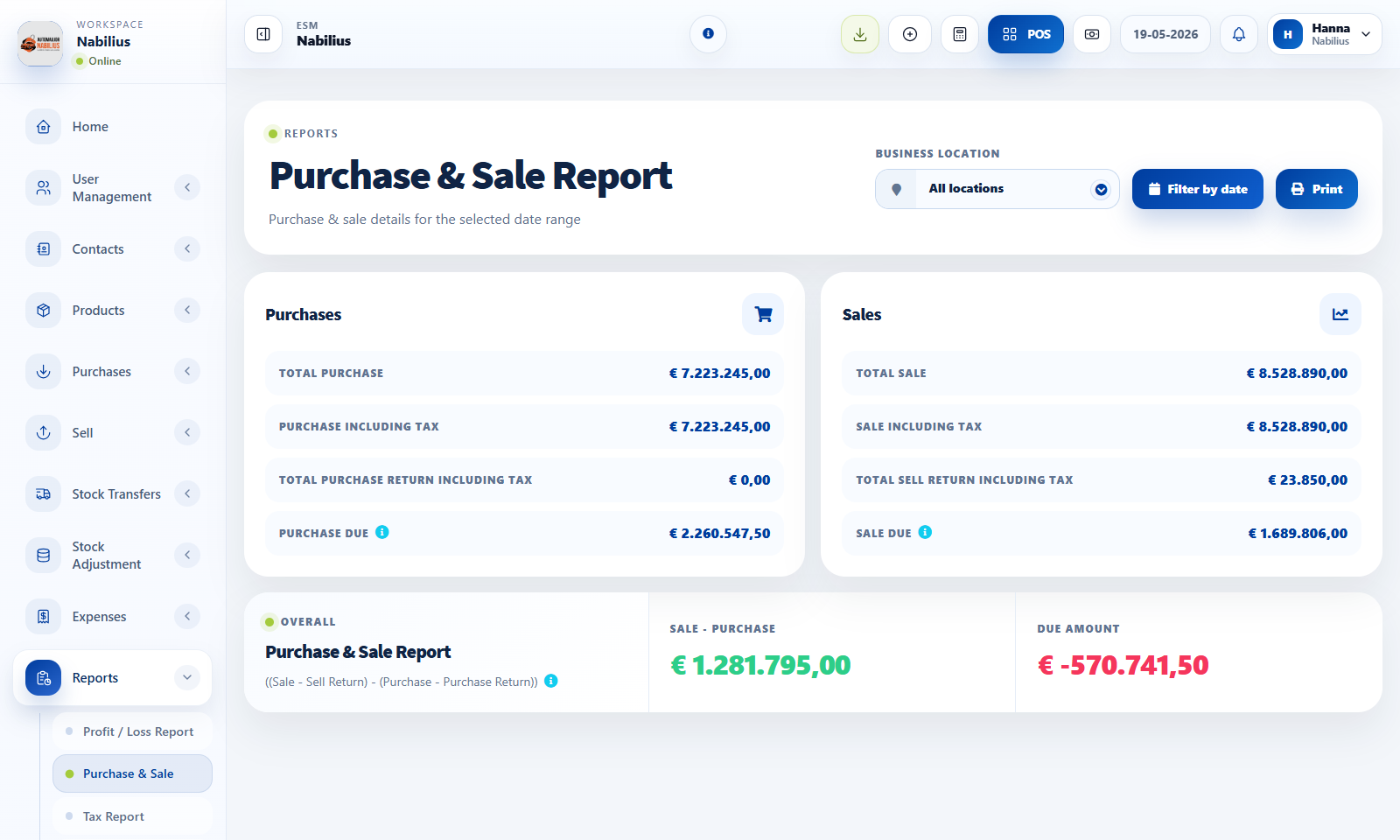
- Purchase & Sale Report compares transaction movement.
- Stock Report shows current stock value and movement totals.
- Product purchase and sell reports show product-level behavior.
- Payment reports show cash, card, cheque, bank transfer, and due movement.
Troubleshooting report numbers
When numbers look wrong, inspect the source transaction before editing reports.
- Check transaction date, status, location, and contact.
- Check payment status and payment records.
- Check stock-managed setting for products involved.
Detailed operating workflow
Use reports to validate operational data rather than relying only on table screens.
- Start with Purchase & Sale Report for high-level movement and Profit/Loss for profitability.
- Use Stock Report and Stock History for inventory checks.
- Use Payment Reports and Contact Reports for due amounts and reconciliation.
- Always apply the intended date range and location before exporting.
Check before moving on
Date range only applies after clicking Apply where that report requires it.
Filters update the table without reloading to stale defaults.
Export buttons reflect the currently filtered table.
Review signals and troubleshooting
Use these checks when the screen looks correct but the numbers, records, or workflow do not behave as expected.
- If page totals do not match table totals, check scrollable total rows and hidden columns.
- If pagination counts change, inspect recordsTotal and recordsFiltered in the AJAX response.
- If a report seems empty, confirm the date range includes the seeded or real transactions.
Practical notes
- Use reports as a verification layer after changing settings, imports, pricing, or stock workflows.