In this guide
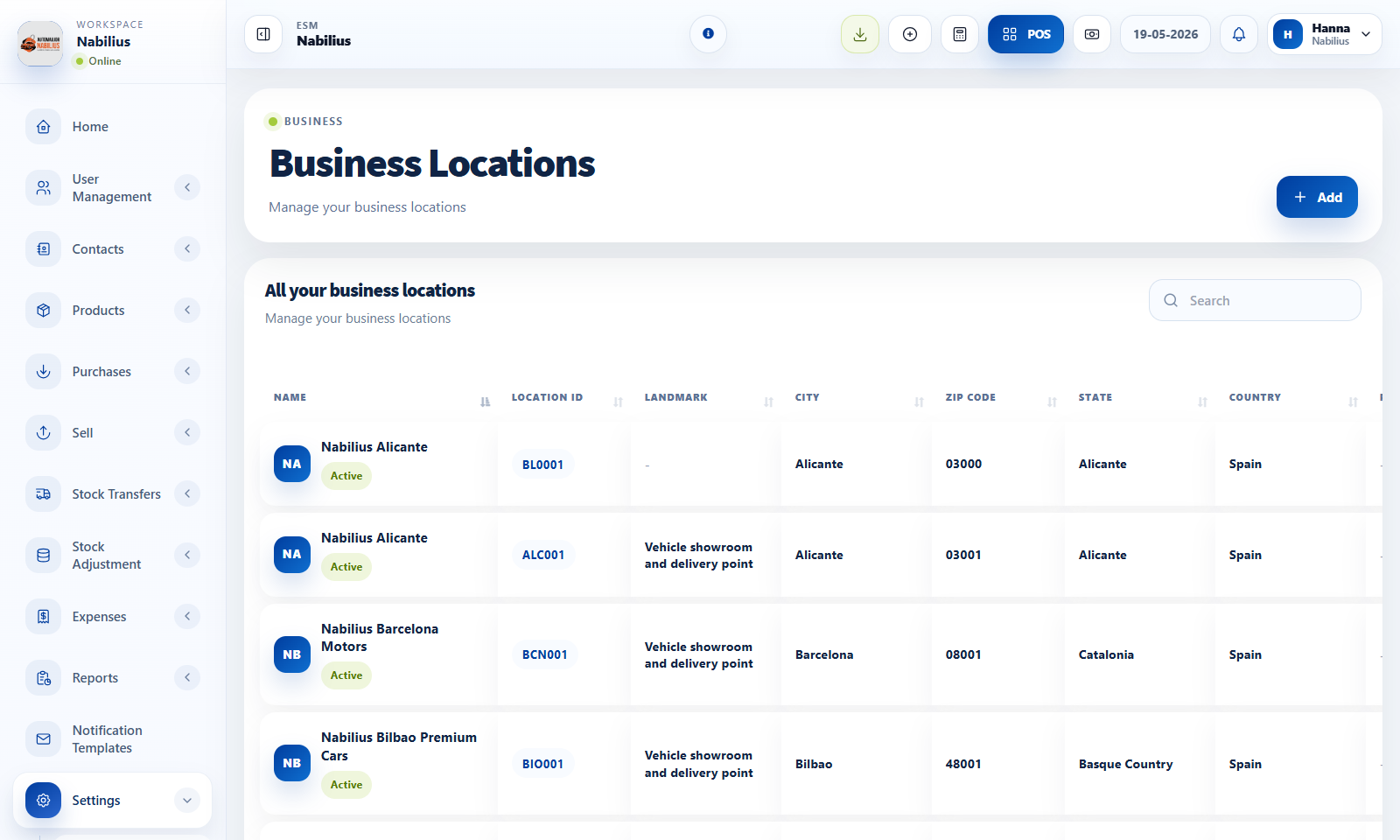
What locations control
A location is more than an address. It controls stock availability, invoices, POS registers, and reporting filters.
- Assign an invoice scheme and invoice layout for each location.
- Use price groups when different branches sell at different rates.
- Use location filters in purchases, sales, stock reports, payment reports, and POS.
Before creating stock
Products can exist globally, but quantities belong to locations.
- Create locations before importing opening stock.
- Confirm the default location for each user who works from one branch.
- Avoid deleting locations that already have transactions; deactivate or archive operationally instead.
Multi-location checks
When stock seems missing, the most common cause is a location filter mismatch.
- Check product stock history by location.
- Check whether transfers moved stock to another branch.
- Check reports using All locations, then narrow to the exact location.
Detailed operating workflow
Use locations to separate stock, invoices, registers, sales filters, and branch-level reporting.
- Create each operational branch, warehouse, or storefront with a clear name and location ID.
- Assign invoice scheme, invoice layout, default price group, registers, and payment settings where applicable.
- Give users access only to the locations they operate or supervise.
- Use transfers rather than manual edits when stock physically moves between locations.
Check before moving on
Every active location appears in POS and report location filters.
Each location has an invoice scheme and layout before sales begin.
Stock reports show location-specific quantities after purchases or opening stock are entered.
Review signals and troubleshooting
Use these checks when the screen looks correct but the numbers, records, or workflow do not behave as expected.
- If a location is missing from a dropdown, check whether it is active and assigned to the user.
- If invoice numbers look wrong, inspect the location invoice scheme assignment.
- If branch totals are unexpected, compare all-location totals with the single-location report.
Practical notes
- Use clear location names such as "Nabilius Alicante" rather than generic names like "Main".