In this guide
Before importing
Import quality depends on the template being clean and aligned with existing setup.
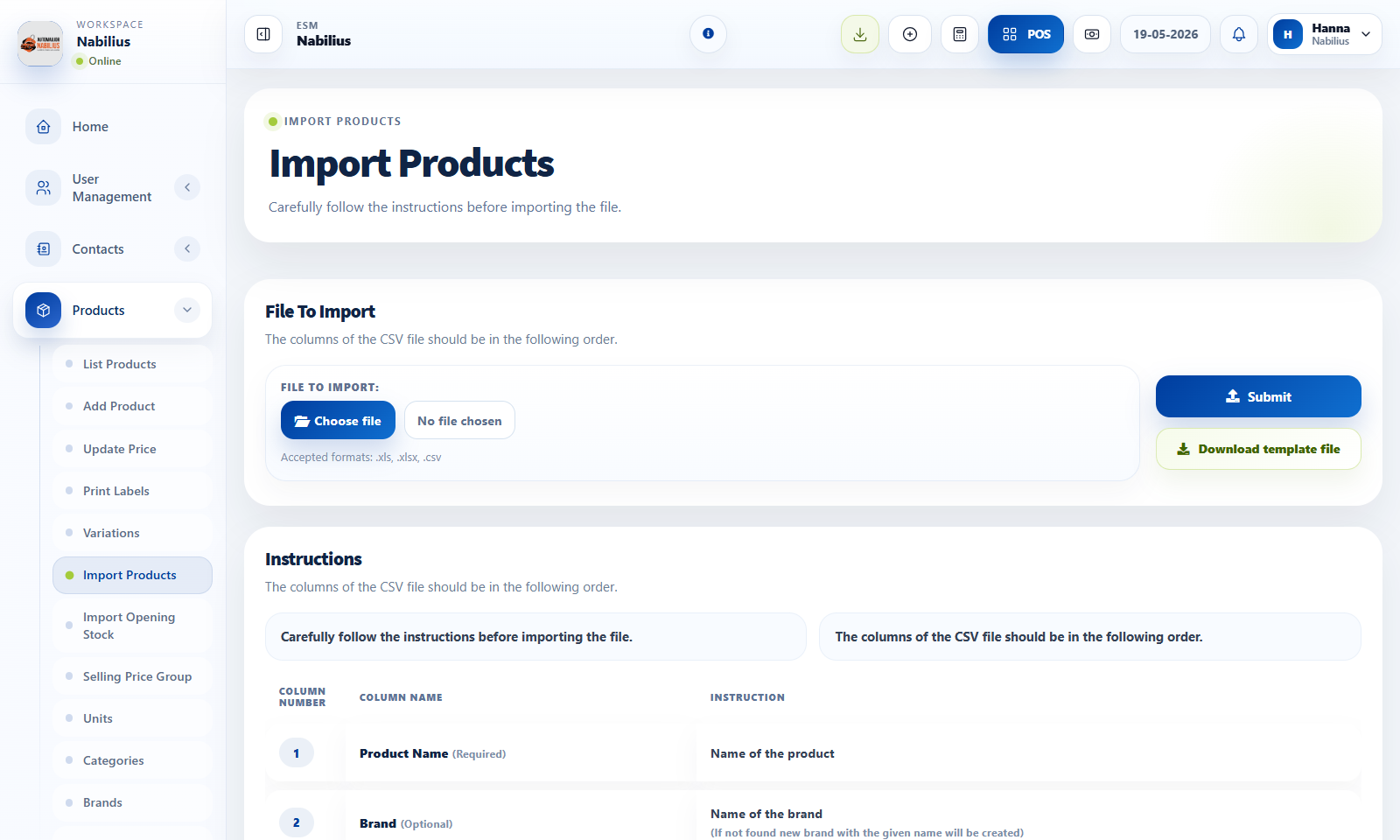
- Download the current template from the import page.
- Create categories, brands, units, taxes, and locations first.
- Keep required columns filled and use exact names where the template expects existing records.
Opening stock
Opening stock should represent the stock count at the moment you start tracking in ESMCloud.
- Import opening stock after products and locations exist.
- Use opening stock only for initial quantities, not for daily adjustments.
- For later corrections, use Stock Adjustment or Stock Transfer.
Validation routine
Always test imports with a small file first.
- Import five rows and verify product list, stock report, and POS search.
- Check currency, decimal formatting, and image paths if used.
- Only then import the full file.
Detailed operating workflow
Use imports to load products and opening stock safely when a business already has existing inventory.
- Download the correct template and fill only the supported columns.
- Import products before importing opening stock so SKU, unit, category, brand, and tax references exist.
- Validate the preview and fix rejected rows before saving imported data.
- After import, open Product List, Stock Report, and Stock History to confirm quantities and values.
Check before moving on
Template column names were not changed.
Location, unit, tax, category, and brand names match existing records.
Opening stock values appear in the correct location.
Review signals and troubleshooting
Use these checks when the screen looks correct but the numbers, records, or workflow do not behave as expected.
- If import fails, check required columns, duplicate SKUs, date formats, and invalid references.
- If stock value is wrong, review purchase price, quantity, and tax settings in the import file.
- Keep the original import file for audit and rollback planning.
Practical notes
- Keep a copy of the imported file with the date and location name for audit purposes.